Migrating Jupyter Notebooks into Texera Workflows
Feature Introduction · Apache Texera
Texera users build data pipelines by connecting operators on a canvas. Users who already have working code, most often a Jupyter notebook, have had one way in: read the notebook, decide where the pipeline boundaries fall, and rebuild it operator by operator. Texera now has a tool that does a first pass of that work. It sends a notebook to a large language model, builds a workflow from the response, and records which cell produced which operator.
A generated workflow is a draft. The tool is built around that assumption, so the notebook stays open beside the workflow while the user edits it and the original code is always one click away.
This post has two halves. The first shows what the tool does, with no assumptions about Texera's internals. The second covers how it was built and what went wrong along the way, for readers who want that.
01 The Problem
A notebook and a Texera workflow describe the same computation in different shapes. A notebook is a linear sequence of cells that share one namespace. A workflow is a graph of operators that pass tables to each other. Getting from the first shape to the second means deciding where one stage ends and the next begins, which values cross those boundaries, and which cells are setup rather than computation.
None of those decisions are hard on their own. Together they scale with the size of the notebook, and all of them come before the user can run anything. For someone with a few hundred lines of analysis code, the cost of the first workflow is high enough to be the reason they never build it.
02 Converting a Notebook
The user uploads a notebook from a button in the workspace toolbar and picks a model from the ones the deployment exposes. There is no API key to paste. The request goes to Texera's own LiteLLM proxy, authenticated with the session the user already has, and the deployment holds the provider credentials. The deployment therefore decides which models are reachable. Conversion takes roughly one to five minutes, depending on the size of the notebook.
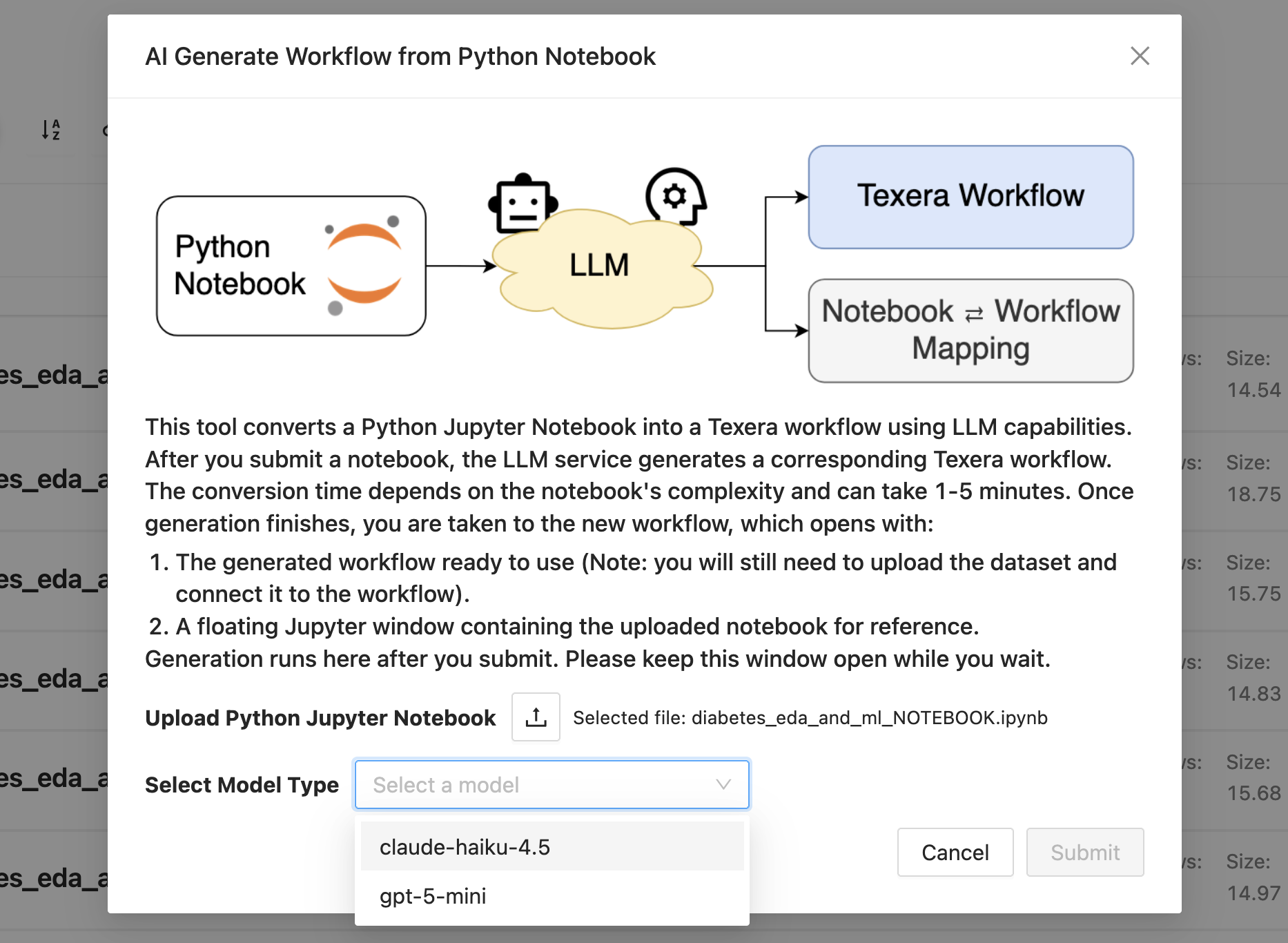
Selecting a notebook and a model before conversion.
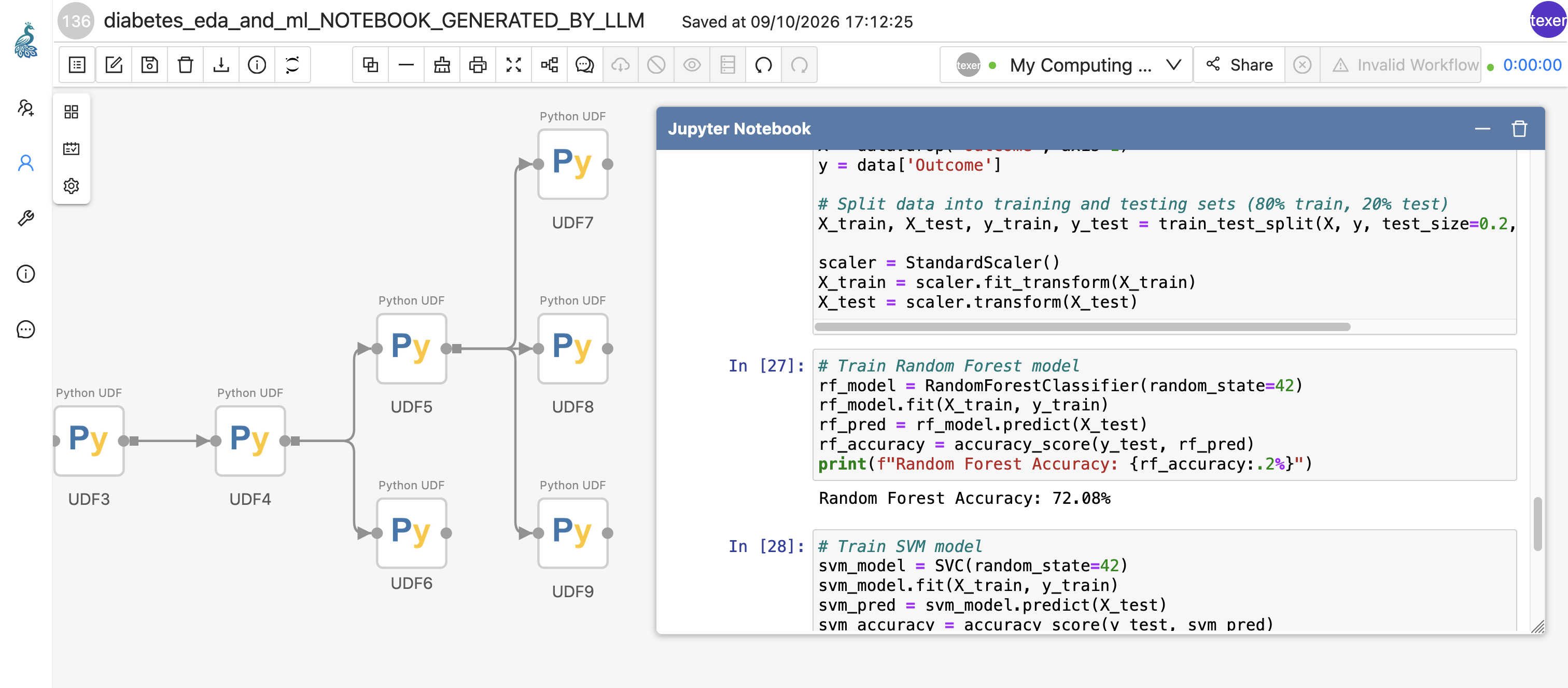
When the model responds, the workspace reloads with the generated workflow on the canvas and the notebook open in a panel beside it. Every generated operator is a Python UDF, so the result is an ordinary Texera workflow. It can be edited, run, versioned, and shared like any other, and nothing about it depends on the tool that produced it.
Uploading a notebook and waiting for the workspace to reload with the generated workflow.
03 Reading the Result
Conversion produces two things: the workflow, and a mapping between notebook cells and the operators generated from them. The mapping is what makes the draft reviewable. Clicking an operator on the canvas highlights the cell it came from, and clicking a cell highlights the operators it produced. A user who wants to know why an operator contains the code it does can answer that by clicking on it.
Selecting an operator highlights the cell it was generated from, and selecting a cell highlights its operators.
The notebook is uploaded to a JupyterLab server, which the workspace embeds in a read-only iframe. Each workflow gets its own file, and the mapping is stored against the workflow's version, so it stays attached to the revision it actually describes.
Both the notebook and the mapping outlive the session. Reopening a workflow that came from a notebook reopens the notebook with it. The panel can be minimized while the user works on the canvas, and a user who is done with the notebook can delete it, which removes the stored mapping and the file on the Jupyter server together.
Minimizing and reopening the panel, closing and reopening the workflow, and deleting the notebook.
04 What It Does Not Do
A generated workflow does not arrive with its data attached. The tool reads the notebook's code, not the files that code opened, so the user still has to upload the dataset and connect it before anything will run. Until then the workspace reports the workflow as invalid, which is expected rather than a sign that conversion failed.
Conversion quality depends on the model. There are no benchmarks and the project makes no accuracy claim. A generated workflow can be wrong in ways that range from an awkward split between two operators to code that does not run. Users should expect to read the output, and the cell mapping exists to make reading it practical.
The notebook panel is read-only. It shows the original code for reference and does not execute it, so it does not replace running a notebook. Editing happens on the workflow side.
Part Two
Under the Hood
Everything above is what the tool does and where it stops. What follows is how it is put together, and the problems that shaped it. Nothing below is needed in order to use the feature.
05 How It Is Built
The feature splits across a Dropwizard microservice, notebook-migration-service, which owns the notebook file, the cell mapping, and the JupyterLab server, and a pair of frontend services. NotebookMigrationService builds the prompt, calls the model, and turns the response into a workflow. JupyterPanelService owns the panel and decides which notebook file the current workflow is looking at.
The model call runs in the browser against Texera's own LiteLLM proxy at /api/chat. The browser authenticates with the Texera JWT it already holds, and the backend swaps in the LiteLLM master key before the request leaves the cluster. Conversion returns a workflow whose operators are all PythonUDFV2, plus a mapping from each cell to the operators derived from it. The mapping is keyed on the workflow id and the workflow's version, so editing a workflow does not leave a mapping pointing at operators that no longer exist.
The first version of the service ran one instance per user, in the same pod as that user's JupyterLab. The Jupyter address was then a constant inside the pod, and isolation was a property of the pod boundary. That was a reasonable simplification for a first version. It did not match how the rest of Texera is arranged. Texera's other services follow a consistent split: orchestrators are global, and stateful resources are per user. computing-unit-managing-service is the closest example, a single global service that resolves each user's compute pod by name.
Moving the notebook service into that pattern took four stages, each small enough to review on its own.
| 1. Stateless API. A request carries the notebook it refers to, instead of the service remembering it. PR #7602 |
| 2. Per-user Jupyter. A registry table and derived tokens, so one global service can serve every user. PR #8032 |
| 3. Deployment topology. The service moves out of the user's pod and becomes a global Deployment. PR #8073 |
| 4. Per-workflow files. Every workflow gets its own notebook rather than sharing one. PR #7738 |
06 Problems That Came Up
One notebook name for every workflow
The frontend uploaded every notebook to work/notebook.ipynb. Across users that was safe, because each user had their own pod. Across one user's workflows it was not. Opening a second converted workflow overwrote the first one's notebook, and two tabs on different workflows collided on the same file. The file is now notebook_<wid>.ipynb, derived in a single helper that both the upload and the iframe request call, so the file that gets written and the file the panel asks for cannot drift apart.
A service that remembered things
The service held the current Jupyter URL in a @volatile field. Uploading a notebook wrote it, and asking for the iframe URL read it back. One user with two tabs open could race that field and get the other tab's notebook. The URL is now built from the request, and the notebook name is validated against the same .ipynb pattern used on upload, which also closes the path traversal that a free-form name would otherwise open.
One Jupyter address for everyone
The Jupyter URL and token were read from configuration as process-wide values. That is only safe when each user runs their own copy of the service. A single global instance would have handed every user the same Jupyter and the same token. A registry table now holds one row per provisioned user, storing both the in-cluster and browser-reachable addresses, and each user's token is derived as HMAC-SHA256(secret, uid). No credential is stored at rest, any replica derives the same value, and rotating the secret rotates every token. The service refuses to start if the feature is on and the secret is empty, because an empty key is publicly known and the tokens would only look distinct.
An iframe cannot carry a token
JupyterLab loads in an iframe and then issues its own requests for assets, directory contents, and kernel websockets. None of those can carry a Texera token, and Texera has no session cookie, so the caller cannot be authenticated per request. Each user's JupyterLab is therefore served under /jupyter/<uid>/, and the gateway resolves that uid to the recorded pod address.
Rebuilt pods and pooled connections
A Jupyter pod is named after its uid, so rebuilding one reuses the hostname with a new IP. The gateway kept pooled connections to the old address for its default idle hour, and a request handed one of those hung until the route timeout, because a departed pod IP is unrouted rather than refused. Retiring idle connections after 30 seconds took a rebuild from 14 failures in 40 requests, scattered over minutes, down to four, confined to the moment of the switch.
Default timeouts shorter than the work
The gateway's default request timeout is 15 seconds. An LLM completion routinely runs longer than that, so the upstream call succeeded and the response was discarded on the way back. Every conversion failed while still spending the API call. The route serving the model now allows 10 minutes, matching the conversion timeout, and the notebook-migration route allows three minutes, which covers provisioning a pod that has to terminate and come back before it answers.
07 Deploying It
The tool runs in all three of Texera's deployment modes. Single-node Docker Compose and the local development scripts each bring up one JupyterLab shared across users, which suits a deployment that already assumes one trusted environment. The Helm chart runs the service as a global Deployment with one JupyterLab pod per user behind a headless Service, a ResourceQuota bounding the pool, and the NetworkPolicy described above.
Per-user resolution is gated on its own flag rather than on whether a registry row exists. With the flag off, every user resolves to the one shared JupyterLab. With it on, a user with no row has nothing provisioned yet and is told so, because falling back to the shared server in that case would hand them another user's notebooks. The user id always comes from the authenticated session and never from a request body.
The whole feature is off by default, behind the pythonNotebookMigrationEnabled flag. An administrator who does not want users sending code to an external model can leave it disabled, and the toolbar button never appears. On Kubernetes, enabling it without supplying a token secret fails at install with a message naming the missing key, rather than coming up quietly insecure.
One known limitation is worth stating. JupyterLab pods have no persistent volume, so a restart empties the working directory, and a single-node container restart does the same. The notebooks themselves are not lost: each one is stored in the database and is uploaded again the next time its workflow is opened.
Where This Goes Next
Notebooks are the first source format the tool understands. Support for plain Python files and for R is in progress, and the machinery that carries a mapping from source code back to generated operators stays the same in each case. Development is tracked on GitHub, and design discussion happens there and on dev@texera.apache.org.
If you have a notebook and a Texera deployment, the project would like to hear how the conversion holds up on it.